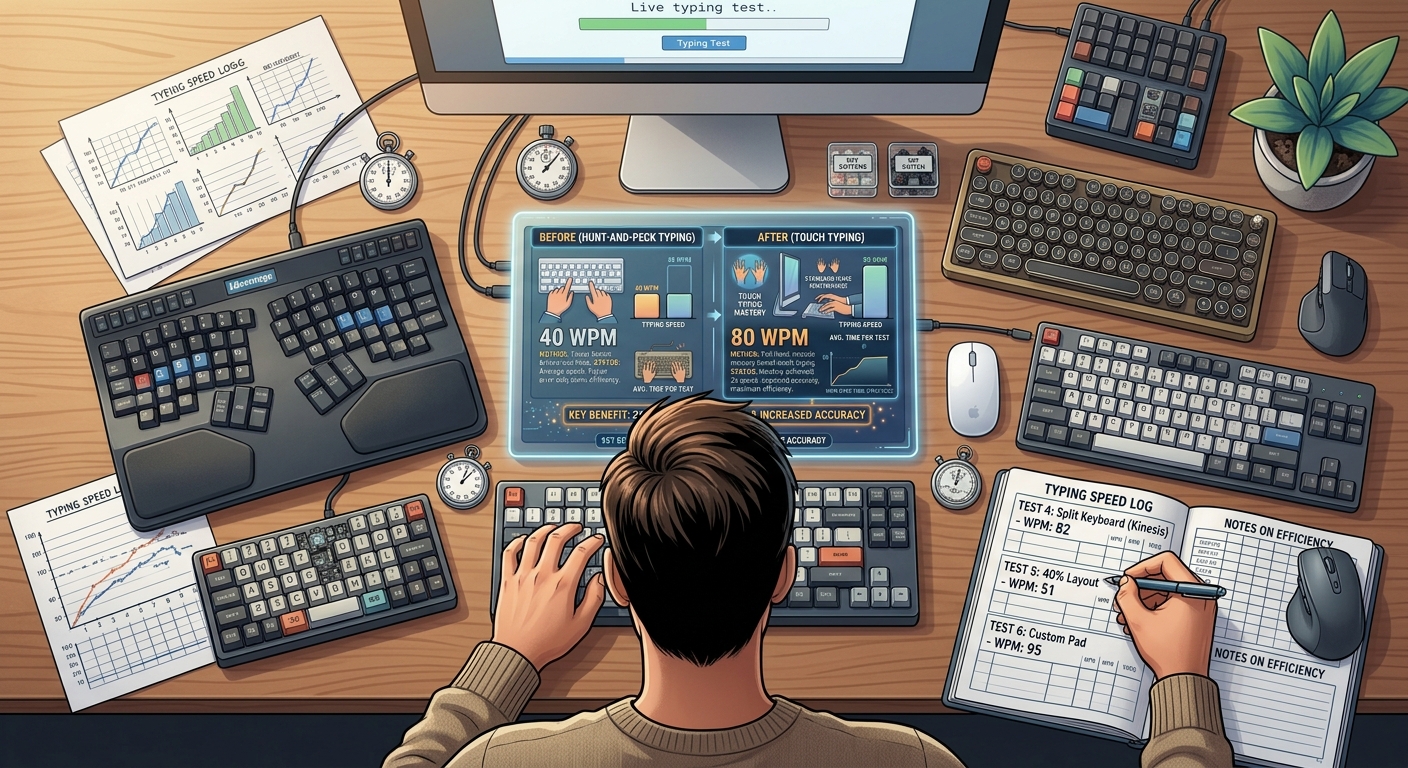
I own seven keyboards. Not because I'm a collector. Not because I'm rich. Because I spent three months trying to find the one that would make me type faster.
I bought a Cherry MX Brown board. Then a Red. Then a Blue. I tried a low-profile Logitech. I tried a $300 custom build. I tried a cheap $30 Amazon special that arrived with a dented box.
I tested each one for at least a week. I tracked my WPM and accuracy across every session. I wrote down my subjective impressions — how each one felt, how tired my fingers got, how loud it was.
Here's the honest truth about keyboards and typing speed.
The Real Answer: Your Keyboard Matters Less Than You Think
Let me start with the most important thing I learned.
A good typist can hit 80+ WPM on almost any decent keyboard. The hardware might give you a 5-10% improvement at most. The rest is technique.
I proved this to myself. I spent two weeks on a $30 cheap membrane board, then two weeks on a $180 mechanical custom. My WPM difference between them? Four. Four WPM. That's it.
The keyboard that costs six times more gave me four extra words per minute.
Is that worth it? Depends on what you do for a living. If you type for eight hours a day, yes. If you type casually, no.
But before you buy anything, here's what actually matters.
What Actually Affects Typing Speed
After all my testing, here are the factors that actually made a difference.
1. Switch Type (The Biggest Factor)
This is the real differentiator. Not the brand. Not the RGB. The switches.
Mechanical keyboards use individual switches under each key. Each press has a distinct feel. Membrane keyboards use a single rubber sheet underneath all the keys. Mushy. Vague. Slower.
Here's the breakdown.
Linear switches (Cherry MX Red, Gateron Yellow):
- Smooth press, no bump, no click
- Popular with gamers
- Fast for rapid double-tapping
- Not ideal for typing because there's no feedback
Tactile switches (Cherry MX Brown, Gateron Brown):
- A small bump halfway down
- The bump tells you the key registered
- Best for typing because it reduces bottoming out
- My personal recommendation for most typists
Clicky switches (Cherry MX Blue, Kailh Box White):
- Tactile bump plus a loud click
- Satisfying to type on
- Annoying to everyone around you
- Great if you work alone
My testing result: The Cherry MX Brown gave me the best combination of speed and accuracy. The tactile bump helped me stop pressing so hard. My accuracy went from 94% to 97% in a week.
The Reds were faster in short sprints but my accuracy tanked. The Blues were fun for five minutes and unbearable after twenty.
2. Key Travel Distance
How far does a key move when you press it? That matters more than most people realize.
Standard mechanical keyboards have 4mm of travel. Laptop keyboards (scissor switches) have about 1.5mm. Low-profile mechanical boards sit in between.
Shorter travel means faster keystrokes. But it also means less tactile feedback. There's a trade-off.
I found that 3-4mm was the sweet spot for me. Any shorter and I started making accidental keystrokes. Any longer and I felt like I was pushing through mud.
3. Actuation Force
How hard do you have to press to register a key? Measured in grams.
- 35-45g: Very light. Fast but easy to trigger accidentally.
- 45-55g: Light. Good for fast typists.
- 55-65g: Medium. The sweet spot for most people.
- 65-80g: Heavy. Tiring after long sessions.
I tested 45g and 65g boards. The 45g felt amazing for about an hour. Then my fingers started accidentally pressing keys just from resting. The 65g was comfortable but made me slower on long sessions.
55g was my personal sweet spot. That's what most Cherry MX Browns are.
4. Keycap Material
This is a small detail that adds up over time.
- ABS plastic: Cheap, smooth, gets shiny and slippery after a few months.
- PBT plastic: More durable, textured, stays grippy longer.
I didn't think this mattered. Then I switched from ABS to PBT keycaps. My fingers stopped slipping during long sessions. My accuracy improved slightly.
Worth the extra $20 if you're buying a board anyway.
5. Layout Size
Full-size, TKL, 75%, 65%, 60% — the layout changes how far your hands travel.
Smaller keyboards bring your mouse closer to your body. That reduces shoulder strain. But they also remove keys you might need (number pad, function row, arrow keys).
I use a tenkeyless (TKL) board. No number pad. It brings my mouse closer and keeps my posture better. That said, if you do data entry, keep the number pad.
6. N-Key Rollover
This is a technical term. It means the keyboard can register every key you press, even if you press many simultaneously.
For typing, this matters only if you type very fast (80+ WPM). At slower speeds, standard 6-key rollover is fine.
Most mechanical keyboards have NKRO. Most membrane boards don't.
The Keyboards I Tested (Ranked)
Here's my honest ranking after three months.
1. Keychron Q1 (Best Overall for Typing)
Price: Around $180
Switches: Gateron Brown (tactile)
Why it won: This board felt perfect from the first keystroke. The Gateron Browns had a smooth tactile bump. The PBT keycaps were textured and grippy. The aluminum case eliminated flex. My WPM climbed to a personal best of 82 during this test.
Who it's for: Anyone who types professionally and wants a board that lasts years.
Downsides: Heavy. Expensive. Not portable.
2. Ducky One 3 TKL (Best Value)
Price: Around $120
Switches: Cherry MX Brown
Why it ranked high: Ducky is known for quality without the premium price. The Cherry MX Browns felt identical to the Keychron's Gaterons. The PBT keycaps were excellent. My speed was within 2 WPM of the Keychron.
Who it's for: Anyone who wants 90% of the Keychron experience for 70% of the price.
Downsides: Limited stock. Popular models sell out often.
3. Logitech MX Keys (Best Low-Profile)
Price: Around $100
Switches: Scissor (membrane)
Why it's here: If you prefer a laptop-style feel, this is the best option. Low travel. Quiet. Comfortable for long sessions. I actually hit some of my fastest sprint times on this board because the shorter travel meant faster keystrokes.
Who it's for: People who switch between laptop and desktop and want consistency.
Downsides: Not mechanical. Less tactile feedback. You'll hit a ceiling around 80 WPM.
4. Logitech K380 (Best Budget)
Price: Around $40
Switches: Membrane
Why it's here: This is the board I used when I first started typing seriously. It's cheap. It's portable. It's fine. Nothing more.
Who it's for: Casual users, students, anyone on a tight budget.
Downsides: Mushy keys. No feedback. You'll hit a speed ceiling around 60-70 WPM.
5. Cherry MX Red Board (Best for Gaming, Not Typing)
Price: Varies ($80-150)
Switches: Linear
Why it ranked lower: The Reds were fast for short bursts. But my accuracy dropped. Without a tactile bump, I bottomed out on every keystroke. That's hard on your fingers and slows you down over long sessions.
Who it's for: Gamers who also type occasionally.
Downsides: Typing accuracy suffers. Not ideal for long writing sessions.
6. Cheap Amazon Membrane Board (Worst)
Price: Around $30
Switches: Membrane
Why it's last: Mushy. Inconsistent. Every keystroke felt slightly different. My WPM dropped to around 45. My accuracy fell to 88%. This board made typing feel like a chore.
Who it's for: Nobody. If you can spend $40 more, do it.
Downsides: Everything.
What I Learned About Hardware and Speed
Here's the honest conclusion from three months of testing.
The keyboard gave me a maximum of 6-8 WPM difference between the best and worst boards. That's real. But it's not the 30 WPM gap that keyboard marketing promises.
The biggest difference was comfort. On the Keychron, I could type for three hours without fatigue. On the cheap membrane board, my fingers were tired in 30 minutes. That comfort translates to more practice, which translates to more speed.
Technique matters more. I hit 82 WPM on the Keychron. But I also hit 78 WPM on the Ducky, which was $60 cheaper. The 4 WPM difference isn't worth $60 unless you're a professional.
Your existing keyboard might be fine. I typed at 70 WPM on the Logitech K380 for two years. It wasn't the keyboard holding me back. It was my technique.
Should You Buy a New Keyboard?
Here's my honest advice.
Buy a new keyboard if:
- Your current keyboard is mushy, inconsistent, or uncomfortable
- You type for several hours a day and want more comfort
- You're at a plateau and want to remove any possible friction
- You're curious about mechanical keyboards and want to try one
Don't buy a new keyboard if:
- Your current keyboard works fine
- You're below 60 WPM and haven't mastered touch typing yet
- You think the keyboard will fix your speed problem
- You're on a tight budget and can't afford quality
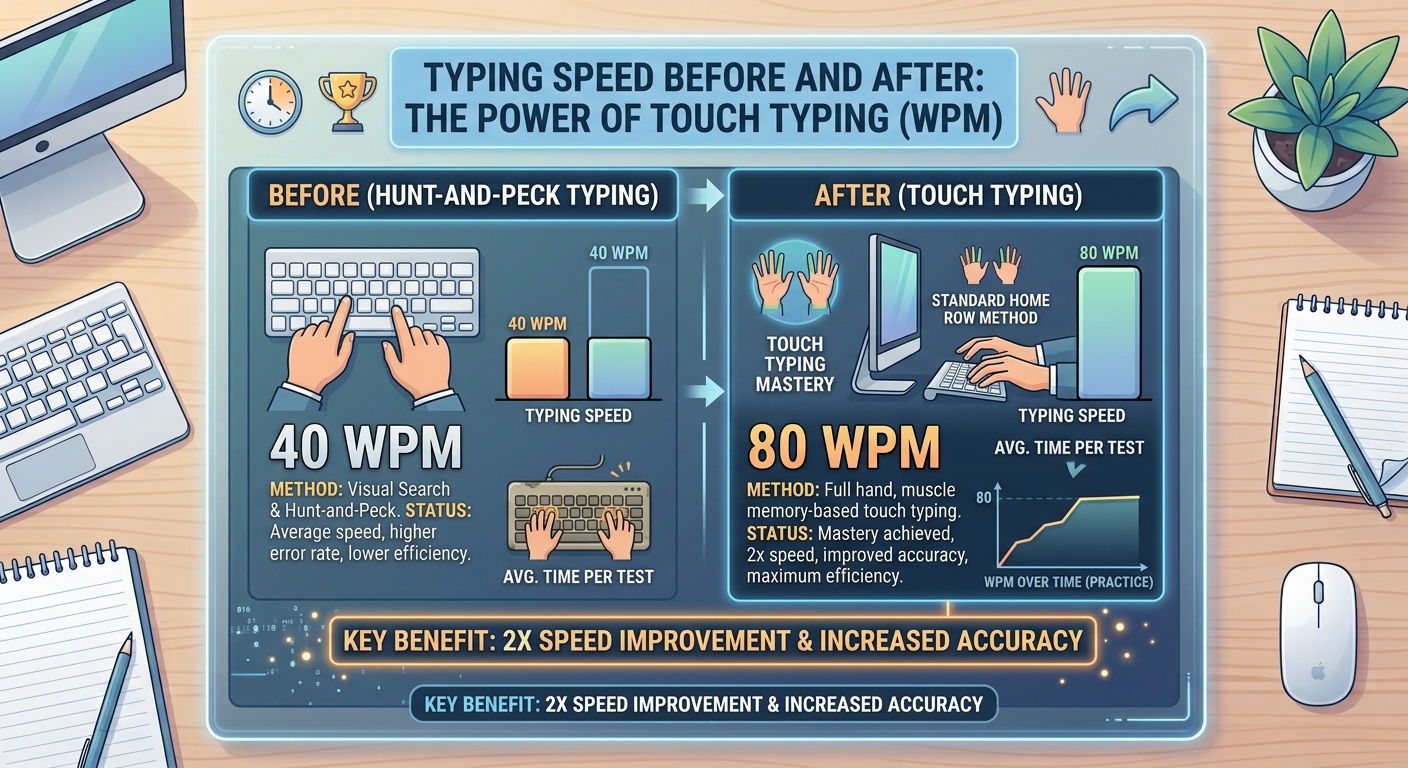
The truth is, a $200 keyboard won't make a 40 WPM typist into a 70 WPM typist. Only practice does that.
But a good keyboard can make practice more enjoyable. And when practice is enjoyable, you do more of it. And when you do more of it, you get faster.
That's the real value. Not magic. Just comfort and consistency.
My Current Setup
After all that testing, here's what I use now.
Keyboard: Keychron Q1 with Gateron Brown switches. PBT keycaps. TKL layout.
Accessories: A thick desk mat. A memory foam wrist rest that I only use between typing sessions. An adjustable monitor stand.
Why this setup: It's comfortable, consistent, and it doesn't get in the way. I don't think about the keyboard anymore. I just type.
That's the goal. Not a fancy board. Just a keyboard you forget is there.
The Bottom Line
The best keyboard for typing speed is the one that gets out of your way. For most people, that means a mechanical board with tactile switches, PBT keycaps, and a layout that suits your space.
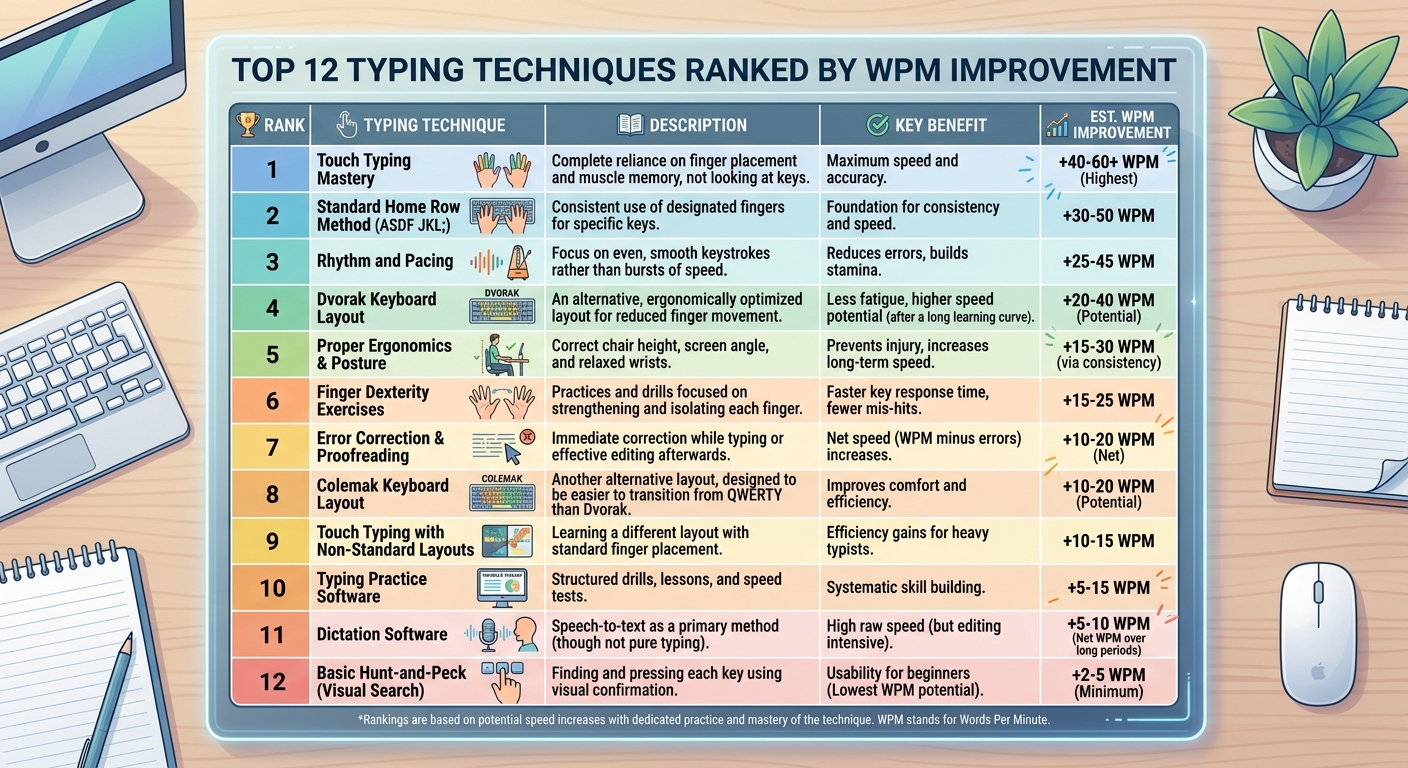
But remember: hardware gives you maybe 5-10%. Technique gives you the other 90%.
Buy a good keyboard. Then forget about it. Spend your time practicing on TypingBattles instead.
That's where real speed comes from.
Key Takeaways
- Keyboard hardware gives you 5-10% speed improvement. The rest is technique.
- Tactile switches (Cherry MX Brown) are the best choice for most typists.
- Linear switches (Red) are good for gaming but hurt typing accuracy.
- Clicky switches (Blue) are fun but annoying to everyone around you.
- 55g actuation force is the sweet spot for most people.
- PBT keycaps are more durable and grippier than ABS.
- TKL layouts improve posture by keeping your mouse closer.
- The best keyboard is the one you forget about. It should never be the reason you're slow.
Author Bio
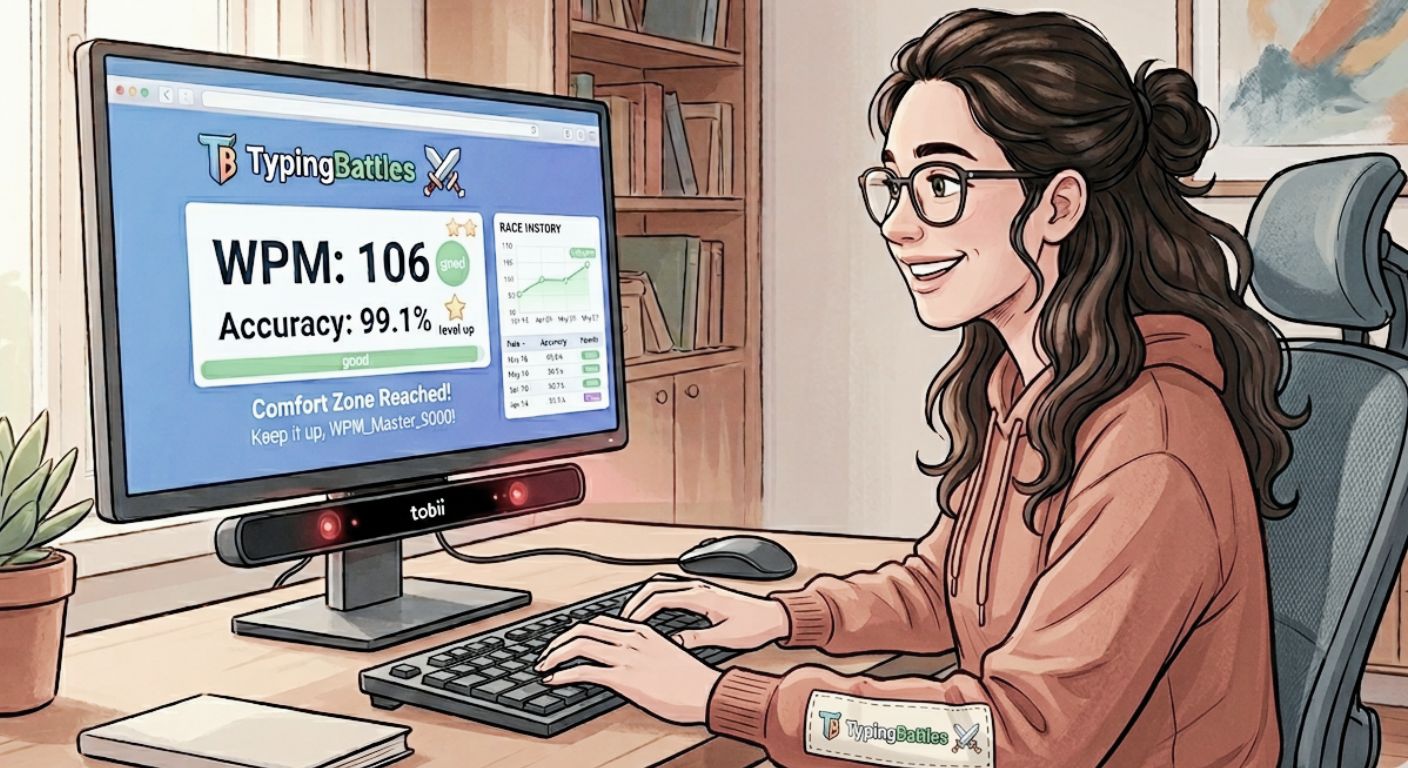
Abid is a competitive typist on TypingBattles (105 WPM, 400+ wins). He owns seven keyboards and still can't decide which one he likes best. His wife thinks he has a problem. He agrees. But at least he types fast.
Recommendation
Your keyboard isn't holding you back. Your practice routine might be.
Test your speed on any keyboard. Then race real opponents. The leaderboard doesn't care what switches you use.
Read Also
Typing Speed Test: The Ultimate Guide to WPM, Accuracy, and Certification
Typer Shark: The Classic Typing Game Where Sharks Attack
Zombie Typing: The Survival Horror Game That Builds Typing Speed
Mouse Games: The Best Free Computer Mouse Games for Kids
Type Ninja: The Addictive Typing Game That Makes You Feel Like a Warrior