I remember the first time I tried to type in Telugu. I was trying to send a message to my grandmother on WhatsApp. She doesn't read English, so I had to figure out how to type in her language.
I had no idea where to start. I thought I needed a special keyboard or some complicated software. I felt stuck.
Then I discovered something amazing. I didn't need to learn a new keyboard layout. I didn't need to memorize where each Telugu letter is located. I could just type the word the way it sounds in English, and it would magically convert to Telugu.
That was a game-changer for me.
Now I want to share everything I've learned with you.
What Is English to Telugu Typing?
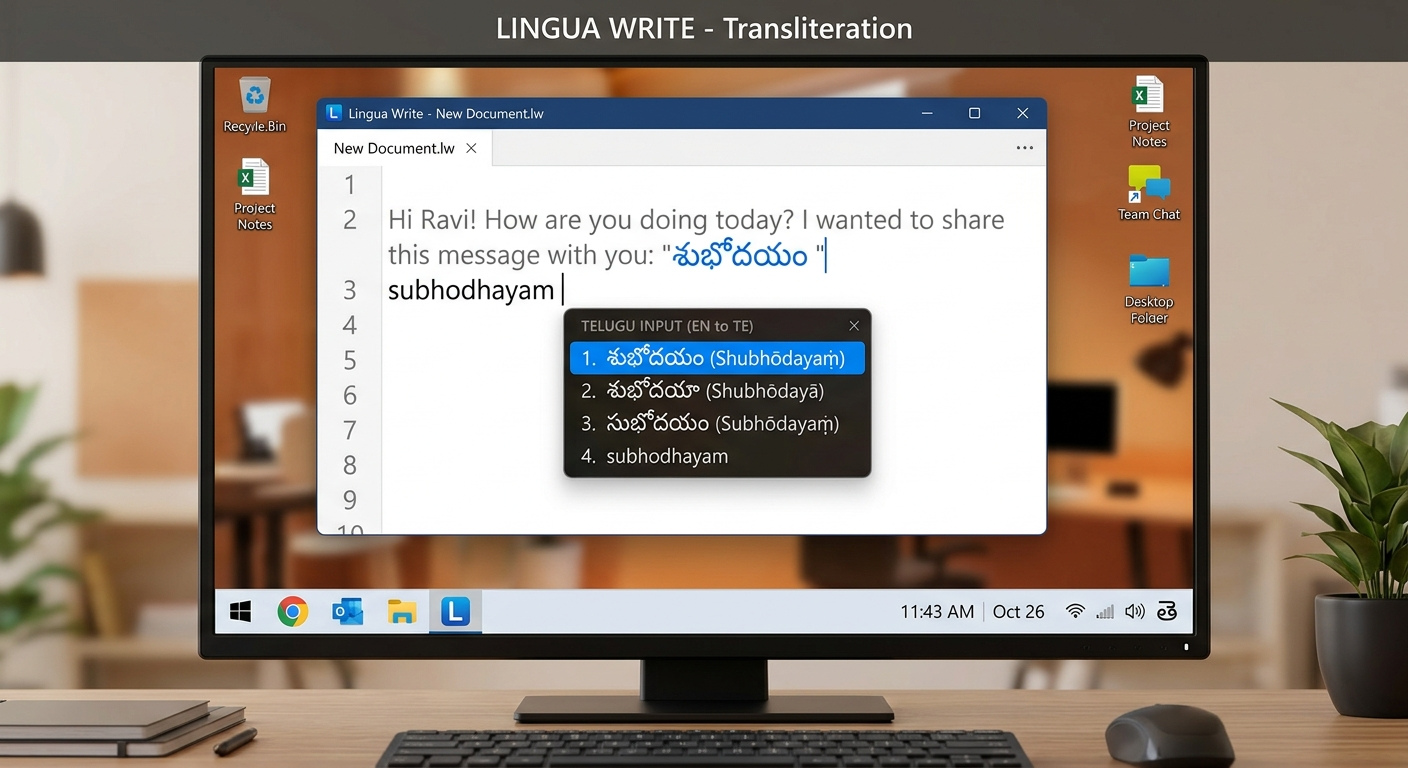
English to Telugu typing is a method where you type Telugu words using English letters, spelling them the way they sound, and the system converts them to Telugu script automatically.
This method is called transliteration.
You type "namaskaram" and it becomes నమస్కారం. You type "andhra" and it becomes ఆంధ్ర. Simple, right?
Here's how it works:
You type the transliteration of the word you want using English keys
For example, to type తోట (garden), you type "thota" with English keys
The system recognizes the phonetic equivalent and converts it
This is why "English to Telugu typing" has become so popular. You don't need to be a typing expert. You don't need to learn a new keyboard. You just need to know how to spell words phonetically in English.
Why Learn English to Telugu Typing?
Here's the thing. Over 80 million people speak Telugu worldwide. It's one of the most widely spoken languages in India. And yet, typing in Telugu used to be a challenge.
Now it's easier than ever.
Benefits of learning English to Telugu typing:
- Connect with family: Send messages to relatives who don't read English
- Work opportunities: Type documents, emails, and reports in Telugu
- Social media: Post in Telugu on Facebook, Instagram, and Twitter
- Education: Type assignments and study materials in Telugu
- Preserve culture: Keep the language alive in digital spaces
How to Type in Telugu Using an English Keyboard
There are several ways to do this. Let me walk you through the most common methods.
Method 1: Online Transliteration Tools
This is the easiest way to get started. You don't need to install anything. Just open your browser and go to a typing website.
Step-by-step guide:
- Open the page: Navigate to an English to Telugu typing section on your browser
- Activate the typing window: Simply click inside the main workspace text area box to begin
- Type using phonetics: Type Telugu words in English letters
- Press the spacebar to convert
Most online tools support "Teluglish" – Telugu typed using English alphabets, eliminating the need for complex keyboard layouts like Apple or Inscript.
Popular online tools:
- Easy Typing's English to Telugu typing section
- India Typing's conversion tool
- GoTranslate's transliteration service
Pro tip: Most tools support up to 2000 characters per request with free Save, Export .doc, and Print features. You can copy and paste your Telugu text directly into Facebook, MS Word, or WhatsApp without font rendering issues.
Method 2: Google Input Tools
Google Input Tools is a free tool that lets you type in Telugu directly in any application.
How to use it:
- Install the Google Input Tools extension for Chrome
- Select Telugu from the languages list
- Start typing in English, and it automatically converts to Telugu
Google Input Tools supports over 90 languages and provides full IMEs or direct transliteration for over 30 different scripts. It's one of the most reliable tools out there.
Method 3: Desktop Software
If you don't have an internet connection and would like to type in Telugu offline, you can easily do so by installing free software.
Steps to install:
- Visit the Google Input Tools website
- Select Telugu from the languages list
- Click on "I agree" and click on Download
- Save the download on your desktop and double-click the downloaded file to install
Once installed, you can type in Telugu in any application without needing an internet connection.
English to Telugu Typing in WhatsApp
This is probably the most common question I get. People want to send messages in Telugu on WhatsApp but don't know how.
The good news? It's incredibly easy.
Method 1: Using a Telugu Keyboard App
There are several keyboard apps that make Telugu typing super easy on WhatsApp.
Desh Telugu Keyboard:
- Type in English letters and get Telugu words with transliteration technology
- Type faster using word predictions
- Easily switch to English with the language key
- Works inside all apps, including WhatsApp
How to enable it on Android:
- Download a Telugu keyboard app from the Play Store
- Go to Settings → Language and Input
- Enable the Telugu keyboard
- Open WhatsApp and switch to the Telugu keyboard
- Type in English and press the spacebar – your English words will automatically convert to Telugu script
Method 2: Using the Default Keyboard
If you don't want to download a separate app, many phones now support multiple languages in the default keyboard.
For Android:
- Go to Settings → General Management → Language and Input
- Add Telugu as a language
- Switch between keyboards using the globe icon
For iPhone:
- Go to Settings → General → Keyboard → Add New Keyboard
- Tap the language you want to add
- Select Telugu and tap Done
- In WhatsApp, long press the globe icon and select the Telugu keyboard
Method 3: Transliteration Apps
Some apps are specifically designed for WhatsApp messaging.
Mana Telugu Keyboard:
- Open any app like WhatsApp, Facebook, Email, Notes, Twitter
- Long press the Globe icon from the default keyboard
- Choose the Mana Telugu Keyboard option
Telugu Keyboard App:
- Works in all apps, including WhatsApp and Instagram
- Supports phonetic Avro-style typing, allowing you to type in Telugu script effortlessly using an English keyboard
English to Telugu Typing in iPhone
I get this question all the time. iPhone users often struggle with typing in Indian languages. But it's actually really simple.
Method 1: Add Telugu Keyboard in iOS Settings
Apple has made it surprisingly easy to add Indian languages to your iPhone keyboard.
Steps:
- Open the Settings app
- Tap General
- Tap Keyboard
- Tap Add New Keyboard
- Tap Telugu from the list of languages
- Select "Add to English (US) Keyboard" and tap Done
iOS 18 supports multiple languages including English, Bangla, Gujarati, Hindi, Marathi, Punjabi, Tamil, and Telugu.
Method 2: Using a Third-Party Keyboard App
If you want more features, you can download a dedicated Telugu keyboard app.
Desh Telugu Keyboard for iPhone:
- Type in English letters and get Telugu words with transliteration technology
- Works inside all apps on your phone
- Word predictions and spell-check available
How to enable it:
- Download the app from the App Store
- Follow instructions to enable the keyboard from settings
- Activate the keyboard by holding the Globe icon and selecting "Desh Telugu Keyboard"
Method 3: Akshar – Indic Keyboard
Akshar is a keyboard for iPhone that transliterates English typing into 15 Indian language scripts in real time. Type "namaste" and see नमस्ते instantly.
Features:
- Switch between Hindi, Tamil, Telugu, Kannada, Malayalam, Bangla, and 9 more languages from the keyboard toolbar
- No globe-hopping needed
Type in English, Get in Telugu: The Magic of Transliteration
This is the core concept behind all these tools. You type in English, and you get the text in Telugu.
Why it works:
The tools use phonetic transliteration. They understand that when you type "kavitha," you mean కవిత. When you type "pelli," you mean పెళ్ళి.
Examples:
- Type "namaskaram" → నమస్కారం
- Type "andhra" → ఆంధ్ర
- Type "telugu" → తెలుగు
Pro tip: There are no hidden fees, no subscriptions, and no daily word limits with most tools. So type as much as you want.
How to Type Telugu in English Keyboard: Advanced Tips
Once you've mastered the basics, here are some tips to level up your Telugu typing.
Tip 1: Learn the Phonetic Mapping
Understanding how English letters map to Telugu sounds will make you faster.
| Telugu Letter | English Keystroke | Phonetic Equivalent |
| క | k | ka |
| ఖ | kh | kha |
| గ | g | ga |
| ఘ | gh | gha |
| చ | ch | cha |
| ఛ | chh | chha |
| జ | j | ja |
| ఝ | jh | jha |
Tip 2: Use Word Predictions
Most Telugu keyboard apps offer word predictions. As you type, the app suggests common words. This can save you a lot of time.
Tip 3: Practice with Real Content
The best way to get better is to practice with real content. Type out Telugu song lyrics, news articles, or messages to friends.
Tip 4: Switch Between English and Telugu Seamlessly
Most tools let you switch between English and Telugu with a simple key combination. For example, press Ctrl + G to switch between English and Telugu.
English to Telugu Typing Keyboard App: The Best Options
There are dozens of apps out there. Here are the ones I recommend.
For Android
Desh Telugu Keyboard:
- Type in English to get Telugu letters
- Works inside all apps on your phone
- A Telugu typing keyboard app for all social media and messaging apps
Telugu Keyboard - Translator:
- Write in English and translate your message in Telugu
- Also translate from Telugu to English
For iPhone
Desh Telugu Keyboard:
- Type in English letters and get Telugu words with transliteration technology
- Type faster using word predictions
- Easily switch to English with the language key
Telugu Keyboard App:
- Supports phonetic Avro-style typing
- Easy Telugu keyboard for iPhone with smart word suggestions
- Works in all apps, including WhatsApp
For Desktop
Google Input Tools:
- Available as a Chrome extension
- Works in any application
- Supports over 90 languages
Types of Millets in Telugu and English
Now, I know what you're thinking. What do millets have to do with typing?
Well, one of the keywords you're searching for is "types of millets in Telugu and English." So let me include this valuable information as a bonus. It's a common search query because people want to know the names of millets in their local language.
Here's a quick reference:
| English Name | Telugu Name |
| Sorghum / Great Millet | Jonna |
| Pearl Millet | Sajja |
| Finger Millet | Ragulu |
| Foxtail Millet | Korra |
| Little Millet | Samalu |
| Kodo Millet | Arikelu |
| Barnyard Millet | Oodalu |
| Proso Millet | Variga |
Other names in different languages:
Foxtail Millet: Kakum (Hindi), Thinai (Tamil), Navane (Kannada)
Pearl Millet: Bajra (Hindi), Kambu (Tamil), Sajje (Kannada)
Sorghum: Jowar (Hindi), Cholam (Tamil), Jola (Kannada)
Pro tip: If you're typing these names in Telugu, you can use the transliteration method we discussed. Type "jonna" for జొన్న, "sajja" for సజ్జ, and "korra" for కొర్ర.
Different Types of Millets in Telugu and English: A Complete List
Let me give you a more comprehensive list for reference.
| English Name | Telugu Name |
| Sorghum | Jonna |
| Pearl Millet | Sajja |
| Finger Millet | Ragulu |
| Foxtail Millet | Korra |
| Little Millet | Samalu |
| Kodo Millet | Arikelu |
| Barnyard Millet | Oodalu |
| Proso Millet | Variga |
This table comes in handy when you're reading nutrition labels, shopping for grains, or following Telugu recipes.
English to Telugu Typing in iPhone: Quick Recap
Let me quickly recap the iPhone method since it's such a common question.
The fastest way:
- Settings → General → Keyboard → Add New Keyboard
- Select Telugu
- Open WhatsApp or any app
- Long press the globe icon
- Select Telugu keyboard
- Type in English and watch it convert to Telugu
Alternative method:
- Download a dedicated Telugu keyboard app from the App Store
- Enable it in settings
- Use it in any app
Best Practices for Telugu Typing
Here are some tips to make your Telugu typing experience smoother.
Practice Regularly
The more you type, the faster you'll get. Start with simple words and gradually move to sentences.
Use Phonetic Spelling
The key to accurate transliteration is spelling words the way they sound. "Namaskaram" works better than "namaskaaram" for most tools.
Check Your Output
Always double-check your converted text. Sometimes the tool might not recognize a word and give you something else.
Explore Different Tools
Not all tools are created equal. Try a few and see which one works best for you.
The Bottom Line
Typing in Telugu using an English keyboard is easier than you think. Whether you're using an online tool, a mobile app, or desktop software, the process is simple: type in English, get Telugu.
From WhatsApp messages to official documents, from casual conversations to professional communication, the ability to type in Telugu opens up a whole new world.
And the best part? It's all free. No subscriptions, no hidden fees, no daily word limits. Just type and convert.
So go ahead. Give it a try. Type "namaskaram" and see what happens.
Key Takeaways
- English to Telugu typing uses transliteration – type in English, get Telugu script.
- Multiple methods available: online tools, Google Input Tools, desktop software, and mobile apps.
- WhatsApp typing: Use a Telugu keyboard app or enable Telugu in your default keyboard settings.
- iPhone typing: Add Telugu keyboard in Settings → General → Keyboard → Add New Keyboard.
- Best apps: Desh Telugu Keyboard, Google Input Tools, Indic Keyboard.
- Millets reference: Jonna (Sorghum), Sajja (Pearl Millet), Korra (Foxtail Millet), and more.
- Practice regularly to improve speed and accuracy.
Author Bio
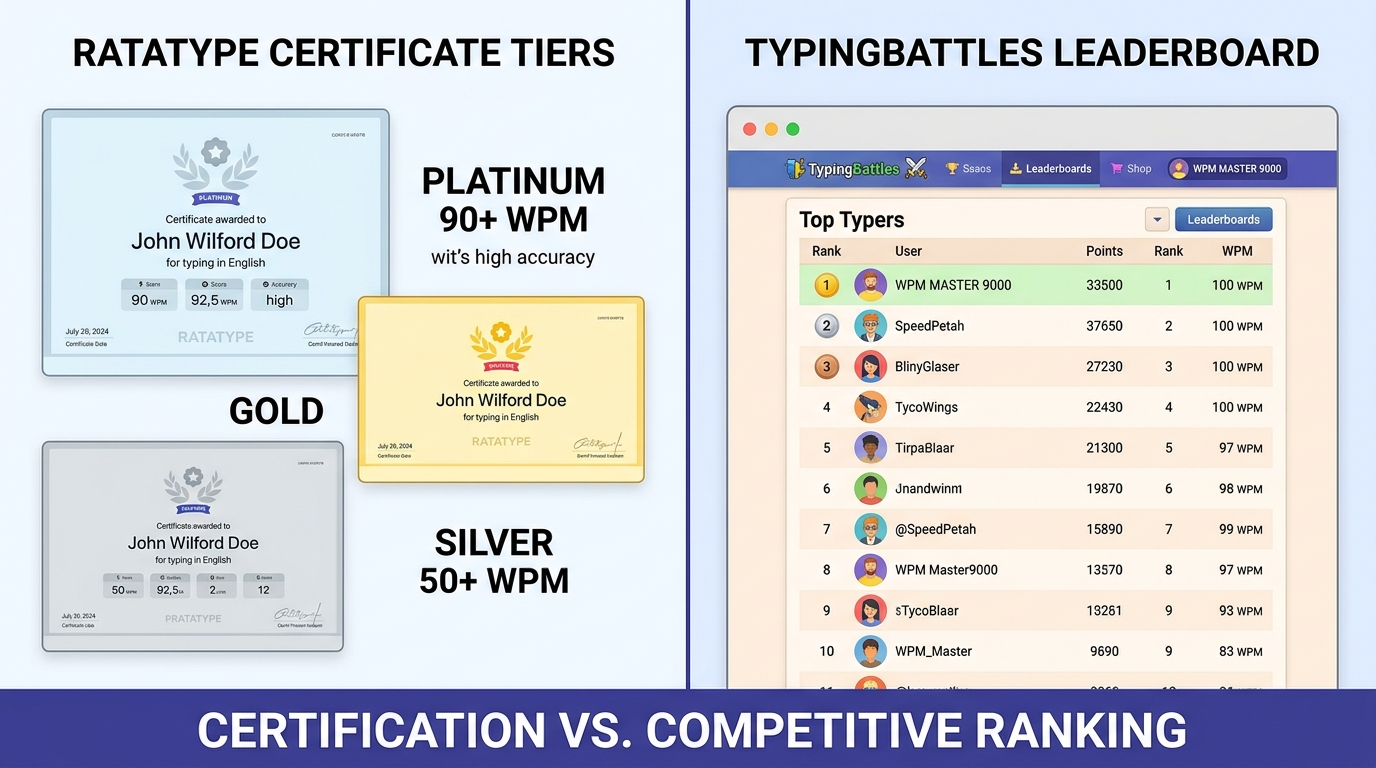
Abid is a competitive typist on TypingBattles (105 WPM, 400+ wins). He's always been fascinated by how people type in different languages. He learned Telugu typing to communicate with friends and family and now helps others do the same. His favorite Telugu word? "Namaskaram." It's the first word he ever typed correctly.
Recommendations
Mastered Telugu typing? Great. Now test your typing speed in English.
Typing in different languages is a skill. TypingBattles helps you improve your speed in English. Race opponents worldwide and see how fast you really are.